sGTM Reverse Proxy on Next.js: First-Party Tracking
Running analytics through third-party domains gets blocked by Safari and ad blockers, hiding 15–30% of conversions. A Next.js reverse proxy routes GTM through your own domain to recover lost attribution.
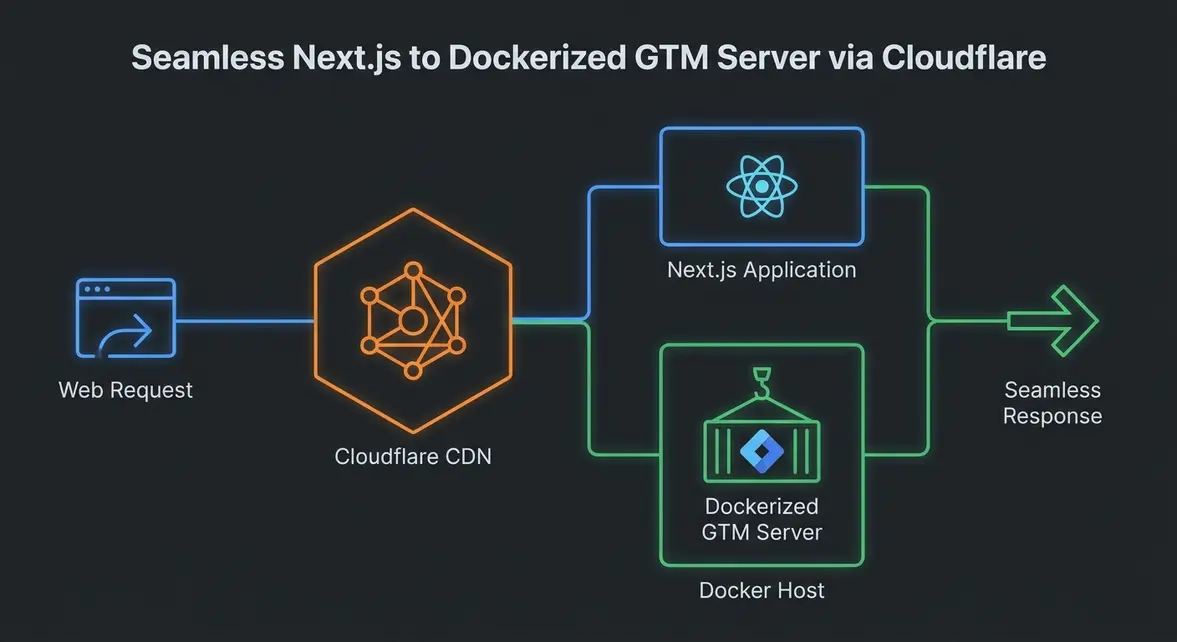
Table of Contents
- What a reverse proxy is and why it matters for tracking
- Why standard analytics setups fail in practice
- How the solution works with Next.js rewrites
- Implementation checklist for your telemetry stack
What a reverse proxy is and why it matters for tracking
Think of a reverse proxy as a smart traffic cop sitting right at the front door of your website. Instead of letting visitors' browsers send data directly to Google or Meta, it quietly catches those analytics requests and forwards them from your own domain to a hidden tracking server. Because the traffic looks like a normal part of your site, browsers stop blocking it—recovering lost conversions and speeding up page loads.
Moving from third-party scripts to first-party routing
In a traditional setup, your site loads external scripts that send event data straight to third-party domains like google-analytics.com. Modern browsers and ad blockers flag these exposed connections immediately, dropping valuable conversion signals. Switching to first-party routing fixes this by pointing your tracking tags to a path on your own domain, such as yourdomain.com/metrics. Your reverse proxy handles the server-to-server handoff behind the scenes, protecting cookie lifespans and keeping page performance fast.
Standard tracking vs. reverse proxy routing
You can check how your current tags behave with our tracking inspector tool before making any changes. Here is how the two architectures compare in practice:
| Metric | Standard Setup (Third-Party) | Reverse Proxy (First-Party) | | :--- | :--- | :--- | | Ad Blocker Impact | High (15%–35% signal loss) | Minimal (routed via your domain) | | Network Latency | Higher (extra external server lookups) | Lower (reuses your site connection) | | Cookie Lifespan | Capped at 1–7 days in Safari | Extended via server-set cookies | | Setup Complexity | Low (paste a script snippet) | Moderate (edge worker or routing rule) |
To see how this architecture handles persistent user identifiers across separate websites, explore our cross-domain tracking memo.
Why standard analytics setups fail in practice
When your website sends tracking data directly to third-party domains like google-analytics.com or connect.facebook.net, modern browsers and privacy tools treat those requests as unwanted trackers and block them. In practice, that means you lose up to 30% of your conversion data before it ever reaches your reports. Missing data distorts your Return on Ad Spend (ROAS), while loading multiple external tracking scripts slows down page load times and hurts the user experience.
Once tracking breaks at the network layer, inaccurate attribution quietly spreads across your dashboards and ad algorithms. You can see a similar cascade of broken reporting in this memo on fixing rogue attribution referrals.
Three technical bottlenecks breaking client-side analytics
Most standard client-side setups fail because of three predictable browser and network behaviors:
| Failure Mode | Technical Cause | Business Impact | | :--- | :--- | :--- | | DNS Blacklisting | Browser extensions like uBlock Origin and Brave Shields match vendor domains against blocklists. | Conversions from privacy-conscious buyers vanish completely. | | Capped Cookie Lifespans | Safari’s Intelligent Tracking Prevention (ITP) caps third-party and client-side cookie lifespans to 7 days or less. | Multi-week sales cycles appear as disconnected direct traffic. | | External Latency Tax | Each third-party vendor requires a separate DNS lookup, TCP handshake, and TLS negotiation. | Slower Largest Contentful Paint (LCP) and higher bounce rates. |
Auditing your current browser exposure
Before moving tracking to a first-party server endpoint, verify what your browser is currently dropping or delaying. You can scan your live tags using our tracking configuration inspector, or inspect blocked requests directly in Chrome DevTools by filtering the Network tab for failed vendor calls:
status-code:0 OR is:blocked-by-client
If you see (blocked:other) next to collect or fbevents.js, your ad platforms are optimizing on incomplete revenue signals.
How the solution works with Next.js rewrites
Instead of forcing visitors' browsers to connect to a third-party Google domain, we can configure Next.js to intercept requests matching a local path like /tracking and silently hand them over to our own Google Tag Manager (GTM) server. To the browser and ad blockers, every analytics call looks like a standard first-party request to your own website. This keeps your measurement reliable without changing how your pages load.
Request Flow and Edge Caching
Here is how traffic moves from a visitor's browser to your Docker-hosted GTM container:
- Cloudflare CDN: Sits in front of your Next.js app, handling SSL and caching static container scripts like
gtm.jsat the edge to keeplatency < 10msfor repeat loads. - Next.js Rewrites: Matches incoming
/tracking/:path*requests and proxies them internally to your GTM server URL without changing the browser's address bar. - Docker GTM Server: Receives the proxied request inside your container, reads the visitor's real network headers, and dispatches clean server-side events to GA4 or ad platforms.
Configuring next.config.ts
Add the following rewrite rule to your next.config.ts file. When proxying to an external destination, Next.js preserves forwarding headers like X-Forwarded-For (the visitor's true IP address) and X-Forwarded-Host (your primary domain) so your Docker container attributes sessions accurately:
import type { NextConfig } from "next";

const nextConfig: NextConfig = {
  async rewrites() {
    return [
      {
        // Preserves X-Forwarded-For and X-Forwarded-Host to the GTM container
        source: "/tracking/:path*",
        destination: `${process.env.GTM_SERVER_URL}/:path*`,
      },
    ];
  },
};

export default nextConfig;
Set GTM_SERVER_URL in your environment variables to your Docker container's endpoint. Once deployed, load a page and verify that /tracking/gtm.js returns a 200 OK status using our tracking inspector.
Implementation checklist for your telemetry stack
Before you turn off your legacy analytics tags, you need to verify that live visitor data actually flows through your new first-party endpoint. Running both setups side by side during a short testing window prevents silent data blackouts if a routing rule or container setting misfires.
Pre-launch deployment checklist
Walk through each layer of your stack in order so you can isolate configuration issues before live traffic depends on the pipeline:
- DNS setup: Point your custom subdomain (for example,
metrics.yourdomain.com) via a CNAME record to your server-side container host, and confirm your TLS certificate provisions cleanly. - Next.js deployment: Verify that your
next.config.jsrewrites or edge middleware forward incoming telemetry paths without stripping first-party cookies, query parameters, or user-agent headers. - GTM client configuration: Update the transport URL inside your web Google Tag Manager (GTM) container to match your new endpoint, and ensure your server container's GA4 client is set up to claim those incoming requests.
- Network tab verification: Open your browser's Developer Tools, filter the Network tab by your custom subdomain, and trigger a page view and conversion event. Confirm that script loads and event payloads return
200or204status codes instead of routing to third-party domains. You can also validate tag behavior and consent states with our tracking inspector.
Baseline telemetry benchmarks
Once traffic flows through the first-party endpoint, monitor your telemetry against these realistic baselines before sunsetting your old setup:
| Metric | Target Baseline | Verification Method |
| :--- | :--- | :--- |
| Event delivery rate | >95% match to legacy setup | Compare 24-hour session and conversion counts |
| Cached script latency | <10ms response time | Browser Network tab timing waterfall |
| Endpoint error rate | <0.5% (4xx or 5xx) | Server container logs and edge analytics |
Keep your legacy client-side tags active in parallel for at least 48 hours of normal traffic. Once your new endpoint consistently meets these benchmarks, you can safely remove the redundant scripts and rely on a cleaner telemetry pipeline.
Moving your tracking to a first-party context using an sGTM reverse proxy on Next.js is one of the highest-leverage engineering tasks you can do for your marketing team. It restores visibility into actual user journeys, keeps cookies alive, and strips out third-party script latency. If you are noticing discrepancies in your Meta or Google Ads dashboards, it is time to upgrade your pipeline. Need help analyzing your current telemetry architecture? Request a free 48h tracking diagnosis at https://gabrielcucos.dev/audit and we can map out a reliable server-side setup.
Related Strategic Memos
All Guides →Bypassing Safari ITP: First-party FPID cookie synchronization via Cloudflare Workers
Safari’s Intelligent Tracking Prevention (ITP) silently caps JavaScript-written cookies (document.cookie) to seven days—or twenty-four hours when inbound tra...
Server-side Meta CAPI vs client pixel: Maximizing event match quality without deduplication drift
Client-side tracking is fundamentally broken. Content blockers, Safari Intelligent Tracking Prevention (ITP), and network-level privacy filters routinely str...
Want this working inside your business?
Whether you're a founder fixing tracking leaks or a team scaling SEO and AI workflows, share your site and bottleneck for a clear diagnostic within 48 hours.