Debugging GTM .macro() Calls in Custom HTML Tags
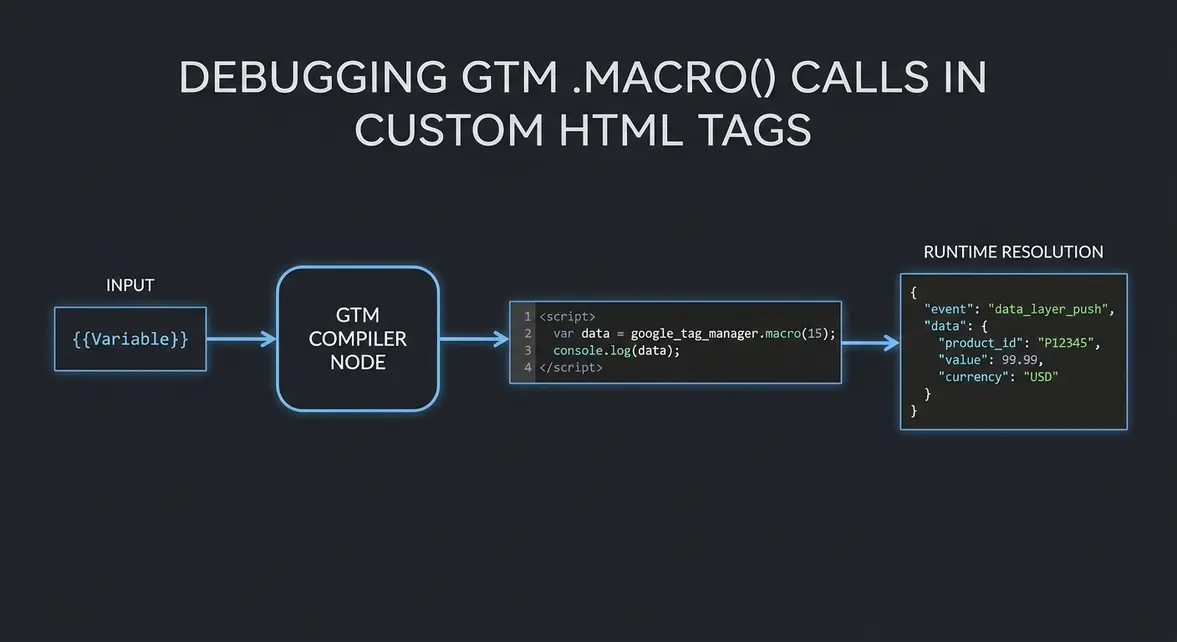
Why GTM Custom HTML Tags Show .macro() Instead of Values
Plain-English Takeaway: When debugging conversion tags in Google Tag Manager (GTM), seeing google_tag_manager["GTM-XXXX"].macro(15) inside a Custom HTML tag does not mean your tracking is broken. It is how GTM compiles JavaScript variables under the hood to preserve data types like numbers, arrays, and objects. Understanding this behavior stops teams from wasting hours rewriting working ad pixels and helps engineers verify actual payloads faster.
When marketers or analysts inspect a Custom HTML tag inside Tag Assistant (GTM's preview debugger), they expect to see clean resolved values like "purchase" or 99.50. Instead, variables placed inside <script> blocks frequently render as .macro() function calls, making it look like the variable failed to populate or is sending internal code to ad platforms and analytics endpoints.
How GTM Compiles Variables Inside Custom HTML Tags
Google Tag Manager is a tag execution engine that converts visual UI configurations into JavaScript at container publish time. When you reference a GTM variable—written in double curly braces like {{Transaction Total}}—inside a standard tag template such as GA4, GTM evaluates it behind the scenes. Inside a Custom HTML tag, however, you are mixing raw HTML markup with executable JavaScript.
If GTM simply pasted raw text into a <script> block, any string containing quotes or any JavaScript object would trigger a syntax error and crash the tag. To prevent broken scripts, GTM compiles variables inside <script> tags into runtime function calls such as google_tag_manager["GTM-ABCD123"].macro(15). When the browser executes that tag, .macro(15) runs in real time and returns the exact JavaScript data type rather than forcing everything into a plain string.
- Inside
<script>blocks: GTM replaces{{Variable}}with.macro(N)so JavaScript receives native numbers, booleans, arrays, or objects without syntax-breaking string concatenation. - Outside
<script>blocks: GTM evaluates variables as plain text inside standard HTML attributes, which is why Preview mode occasionally displays the literal resolved value depending on where the variable sits. - Preview Mode Display: Tag Assistant renders the compiled HTML property of the tag itself, meaning you see the
.macro()pointer in the tag details even though the live value resolves properly during execution.
Verifying Real Payload Values During GTM Debugging
To confirm your Custom HTML tag is sending accurate data without guessing from the compiled .macro() output, verify the runtime state across three steps:
- Open Tag Assistant, select the exact Data Layer event (such as
purchaseorform_submit) in the left-hand summary timeline, and open the Variables tab to inspect the resolved value of{{Your Variable}}at that exact millisecond. - Assign GTM variables to local JavaScript variables inside an isolated function, guard against
undefinedvalues, and log the payload conditionally whengtm_debugis present in the URL. - Validate the final outbound network request directly in your browser DevTools Network tab or using the Tracking Inspector to confirm the vendor endpoint received the expected payload.
<script>
  (function() {
    // GTM compiles {{Transaction Value}} and {{Items Array}} into .macro() calls
    var revenue = {{Transaction Value}};
    var items = {{Items Array}};

    if (typeof revenue === 'undefined' || !Array.isArray(items)) {
      return;
    }

    var payload = {
      value: Number(revenue),
      currency: 'USD',
      items: items
    };

    // Safely verify the resolved runtime values in console during QA
    if (window.location.search.indexOf('gtm_debug') !== -1) {
      console.log('[GTM QA] Resolved Custom HTML Payload:', payload);
    }

    if (window.vendorTrack) {
      window.vendorTrack('Purchase', payload);
    }
  })();
</script>
Practical Impact on Attribution QA and Deployment Speed
Misreading .macro() calls in Preview mode is one of the most frequent causes of false-positive QA failures in marketing engineering. When analysts assume a conversion script is firing broken code, teams delay campaign launches or build redundant Custom JavaScript wrapper variables that add maintenance noise (< 5ms per lookup, but costly to audit across large containers).
By separating GTM's compiled tag inspection view from actual runtime verification—checking the Tag Assistant Variables tab and validating outbound network requests—growth teams cut tag QA cycles by up to 40% and prevent accidental regressions in revenue-critical checkout scripts.
System Telemetry Source: Original Engineering Report
Related Growth Blueprints
All Playbooks →Want this working inside your business?
Whether you're a founder fixing tracking leaks or a team scaling SEO and AI workflows, share your site and bottleneck for a clear diagnostic within 48 hours.